
Sweep the junk off your C: drive.

ByteBroom finds the temp files, browser caches and developer leftovers that quietly fill up Windows, shows you exactly what they are, and clears them in one click.

Free for Windows 10 and 11, 64-bit. No installer: download it and run it.

Local Disk (C:)
10.2 GB free
  • Windows junk 7.7 GB
  • Browsers 5.1 GB
  • App caches 3.8 GB
  • Developer caches 15.4 GB
Example: a 256 GB developer laptop with 32 GB of junk.

See it in action

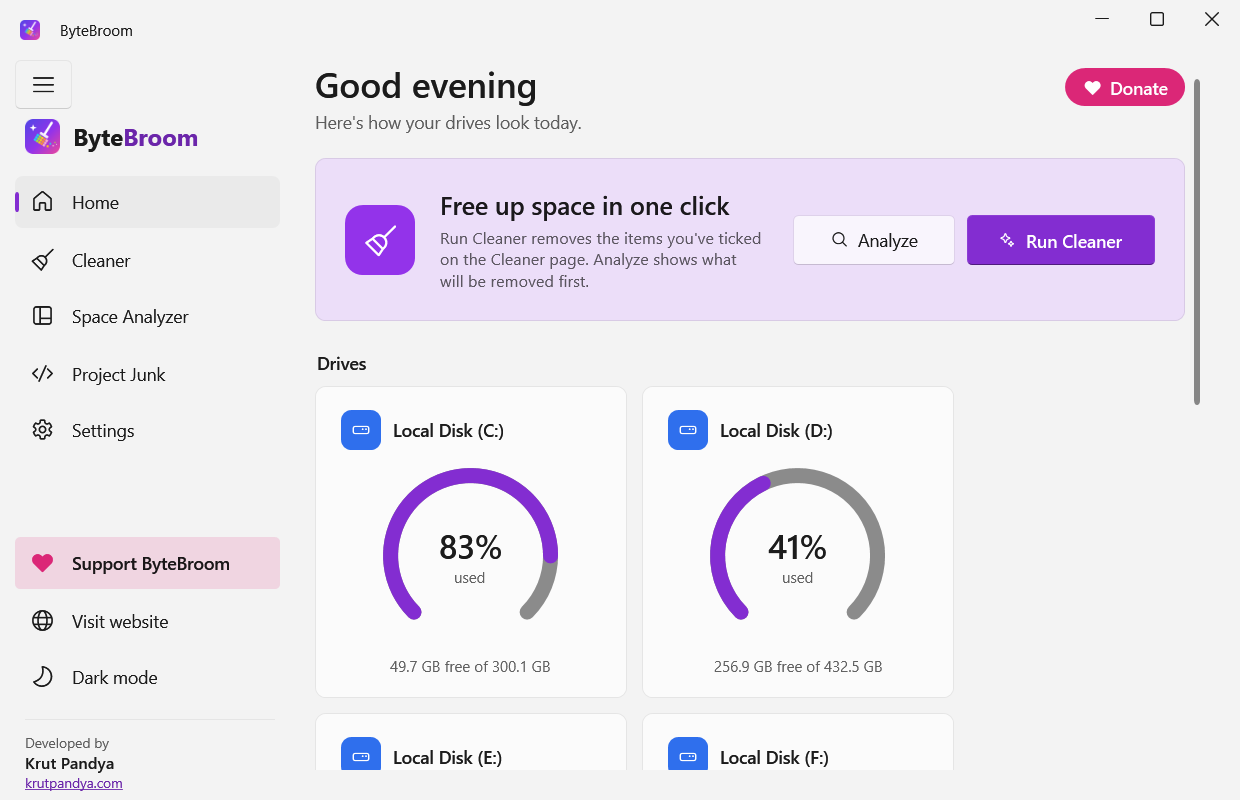
A native Windows 11 app, in light or dark.

ByteBroom Home page in light mode

Home shows how full each drive is, with Analyze and Run Cleaner one click away.

What it cleans

Everything is grouped the same way as in the app, so you can tick exactly what you want gone.

Windows

Space Windows uses and never gives back.

  • User and Windows temp folders
  • Windows Update downloads
  • Delivery Optimization cache
  • Error reports and crash dumps
  • Thumbnail and icon caches
  • DirectX shader cache
  • Setup and servicing logs
  • Recycle Bin
  • Recent files and jump lists

Browsers

Each installed browser on its own: Chrome, Edge, Firefox, Brave, Vivaldi, Opera, Opera GX and Chromium.

  • Cache
  • Browsing and download history
  • Cookies, keeping the sites you choose
  • Open-tab sessions
  • Saved form data
  • Saved passwords, only if you ask

Applications

Caches and logs that everyday apps leave behind.

  • Visual Studio Code
  • Microsoft Teams
  • Slack
  • Discord
  • Zoom
  • Postman
  • Adobe media cache
  • Visual Studio
  • JetBrains and Android Studio

Developer

Package caches that grow by gigabytes and download again whenever a project needs them.

  • npm, Yarn and pnpm
  • NuGet
  • Gradle
  • Maven
  • pip and uv
  • Playwright browsers
  • Go build cache

How it works

  1. Run it

    Download ByteBroom and open it. Nothing to install, no account to make.

  2. Tick what you want gone

    The recommended items are ticked for you. Saved passwords, form data and site settings start unticked, so they are only removed if you choose.

  3. Analyze, or clean straight away

    Analyze shows how much each item takes up without deleting anything. Run Cleaner clears your ticked items right away.

While it cleans you can see what it's working on, how far along it is and how much space is already free.

See what takes up space

New in ByteBroom: the Space Analyzer. Pick a drive or a folder and it shows where the space went, biggest first. A scan only reads, so nothing changes until you choose to delete something.

Example: a user's folder on drive C, opened from the scan. Sizes update as the scan runs.

Find the big stuff

A coloured bar shows the biggest folders at a glance. Below it, everything is listed by size, with a bar and a percentage for each. Open a folder to look inside, and use the breadcrumb to step back out.

Biggest files lists the 100 largest files anywhere below. By type adds them up by kind:

  • Videos
  • Pictures
  • Music
  • Documents
  • Archives and disk images
  • Programs and libraries
  • Databases and virtual disks
  • Other

Every list can be sorted.

Fast with admin rights

As administrator, ByteBroom reads the drive's NTFS file table directly. On a real 250 GB drive with 1.7 million files, that took about 6–7 seconds. Without admin rights it scans folder by folder instead, which takes around a minute on a large drive. Either way, sizes fill in as it goes and you can stop the scan at any time.

Delete with care

Delete straight from any list. ByteBroom asks first and shows the full path and size. Files go to the Recycle Bin unless you choose to delete them permanently, and a long permanent delete can be stopped. Afterwards it tells you exactly what happened, such as when Windows deleted something permanently instead of recycling it, or when only part went through.

Windows, your programs and other protected places can't be deleted from the Analyzer.

Clear build leftovers from old projects

New in ByteBroom: Project Junk. It finds the folders your coding projects can rebuild, like node_modules and build output, and lists them per project with their size and when you last used the project. Finding only reads, so nothing changes until you delete.

Example: projects found on drives C and D, biggest first. Sizes fill in after the projects are listed.

Find what can be rebuilt

Project Junk looks for the folders that a build or an install puts back:

  • node_modules and .next
  • bin and obj
  • Rust and Maven target
  • Gradle build folders and caches
  • .dart_tool
  • __pycache__ and other Python caches
  • dist, build and out

It searches your other drives and the usual project folders on C:, like source\repos, Documents and Desktop. You can add or remove folders. Projects show up within seconds and sizes fill in afterwards.

Old projects ticked, recent ones left alone

Every project shows when you last used it. Only projects you haven't touched for 30 days are ticked. You can change that to 7, 90 or 180 days. Recent projects stay in the list, unticked, in case you want them anyway.

Strict about what it lists

A folder is listed only when its project file is there, like package.json next to node_modules, and git tracks nothing inside it. If git can't tell, or the folder holds a git repository, it isn't listed. Python environments (.venv) are off until you switch them on. Anything left out is shown with the reason.

Delete fast, rebuild when you need it

Deleting is permanent by default, which is fast and frees the space at once. To get a folder back, install or build again, for example with npm install or dotnet build. If you'd rather keep a way back, choose Move to the Recycle Bin instead (slower) when ByteBroom asks. Each folder is checked again just before it's deleted, protected places are never touched, and every delete goes into the activity log.

Careful with your files

The Cleaner deletes for good, so ByteBroom is strict about what it touches.

  • Only the items you tick are cleaned. Anything risky, like saved passwords, asks again first.
  • The Cleaner never touches Documents, Desktop, Pictures or Windows system folders.
  • Files that are in use are skipped, never forced.
  • Browsers are closed before their data is cleaned, and only after you say so.
  • Sites you choose stay signed in when cookies are cleaned.
  • Every clean is written to an activity log, file by file.
  • Before cleaning system items as administrator, it offers a System Restore point.

In the Space Analyzer

  • Windows, Program Files, ProgramData, other people's profiles, credential stores, cloud-synced folders like OneDrive and Dropbox, and system files like pagefile.sys and hiberfil.sys are protected and can't be deleted.
  • Deleted files go to the Recycle Bin unless you choose otherwise, and ByteBroom asks first with the full path and size.
  • Links and folder shortcuts are never followed.

In Project Junk

  • A folder is listed only when its project file is there and git tracks nothing inside it. If git can't tell, it isn't listed.
  • Folders that hold a git repository are never listed. Names that could be your own work, like dist, build and out, get the same checks.
  • Each folder is checked again just before it's deleted. Protected places are never touched.
  • Cancel is the default in the confirmation. Tick Move to the Recycle Bin instead if you want a way back.
  • Every delete is written to the activity log.

Questions

Is ByteBroom free?

Yes. You can download and use it for free. Donations help pay for its development.

Will it delete my documents or photos?

The Cleaner won't. It only cleans the cache, temp and log locations listed above, and only the ones you tick. Documents, Desktop, Pictures and Windows system folders are on its protected list and are never touched. The Space Analyzer deletes only what you pick there yourself, after asking, and sends it to the Recycle Bin unless you choose otherwise. Project Junk lists only folders inside coding projects that a build or install puts back.

Can the Space Analyzer delete something important?

Not what Windows and your programs need. Windows, Program Files, ProgramData, other people's profiles, credential stores, cloud-synced folders like OneDrive and Dropbox, and system files like pagefile.sys and hiberfil.sys are marked Protected and can't be deleted from the Analyzer. Your own files are yours to delete, so ByteBroom always asks first and shows the full path and size.

Why is the scan faster as administrator?

With admin rights, ByteBroom can read an NTFS drive's master file table directly instead of opening every folder one by one. On a real 250 GB drive with 1.7 million files, that took about 6–7 seconds. Without admin rights it uses a regular folder scan, which takes around a minute on a large drive. Both kinds of scan only read; nothing is changed.

Where do deleted files go?

Files you delete in the Space Analyzer go to the Recycle Bin, so you can restore them, unless you choose to delete them permanently. If Windows deletes something permanently instead of recycling it, or only part of it could be deleted, ByteBroom tells you. What the Cleaner removes is deleted for good, not recycled. Project Junk deletes for good too, unless you tick Move to the Recycle Bin instead.

Will Project Junk delete my code?

No. It lists only folders that a build or an install creates, like node_modules, bin and obj, and only when the project file they belong to is there. If git tracks anything inside a folder, or can't tell, the folder isn't listed, and a folder that holds a git repository never is. Each folder is checked again just before it's deleted.

What if I need node_modules again?

Run npm install in the project and it comes back. Other folders return the same way: build or install again, for example with dotnet build. That's why Project Junk deletes permanently by default: it's fast and frees the space at once. If you'd rather be able to undo it, tick Move to the Recycle Bin instead (slower) when ByteBroom asks.

Why isn't a folder listed in Project Junk?

Project Junk is strict on purpose. A folder is left out when git tracks something inside it, when git can't tell, when it holds a git repository, or when it's in a protected place. Most of these show under folders left out with the reason. Python environments (.venv) are off by default; you can switch them on in the page's settings. Projects are also only found in the folders under Where to look, so add yours if they live somewhere else.

Which download do I need?

Almost every PC needs the 64-bit version. Use the 32-bit version only on 32-bit Windows. To check, open Settings → System → About and look at System type.

Windows says it protected my PC. What do I do?

ByteBroom is new and not code-signed yet, so Windows SmartScreen may warn you the first time you open it. Select More info, then Run anyway.

Does it need to be installed?

No. It is a single program file. Your settings and activity log are kept in %LOCALAPPDATA%\ByteBroom.

Does it send my data anywhere?

No. ByteBroom works offline. There is no account and no tracking. It only opens a web page when you click a link, like this website or the donate button.